
Let’s say you don’t want to send your newsletter immediately. Instead, you want to save it as a draft inside your email service provider… Perhaps to use later as a part of an email automation or template.
This is also a great way to use Newsletter Glue as an email builder.
Watch this quick 24 second video to show you how to do this or follow the steps below.
Here’s how you can do this:
Step 1: Write your newsletter
Write your newsletter first.
Step 2: Newsletter Glue: Send as newsletter > Edit more settings
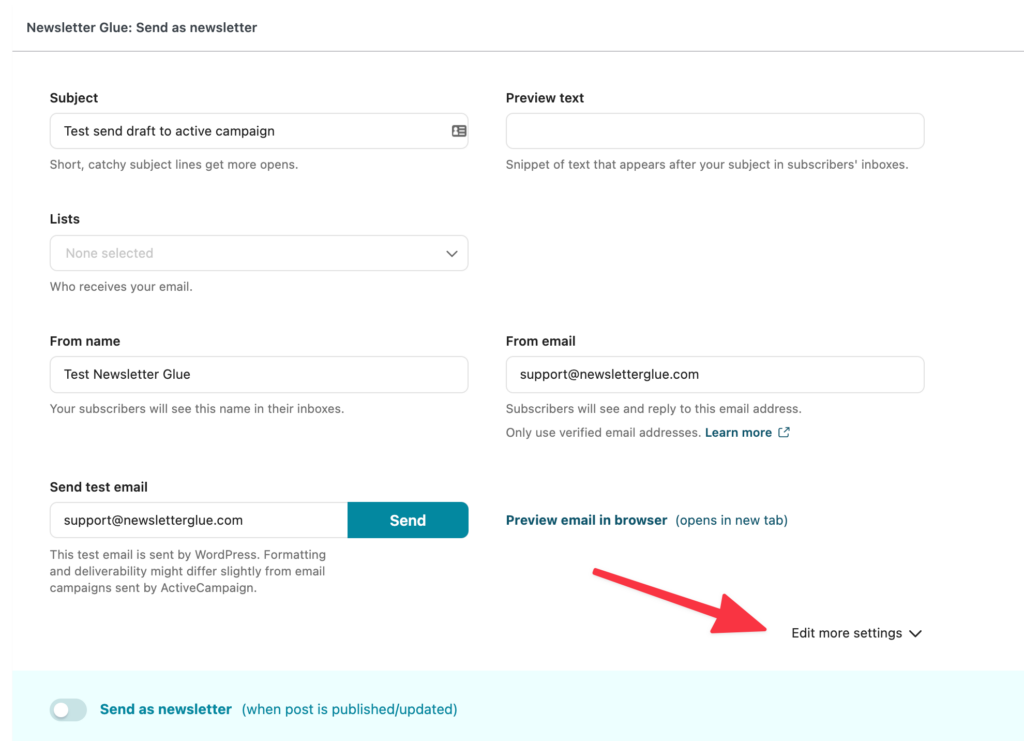
Then, scroll down and look for the Send as newsletter metabox. At the bottom right hand corner, you should see the option to Edit more settings.
Click on it to expand…
Step 3: Send now or save for later
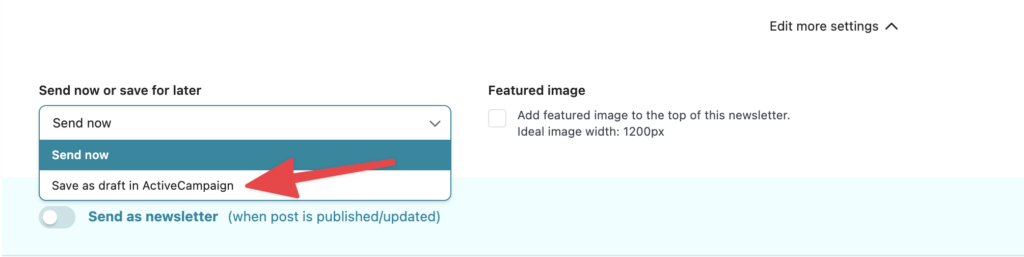
Click on the dropdown options under Send now or save for later. Then select Save as draft in [your email service provider].
Step 4: Save as draft
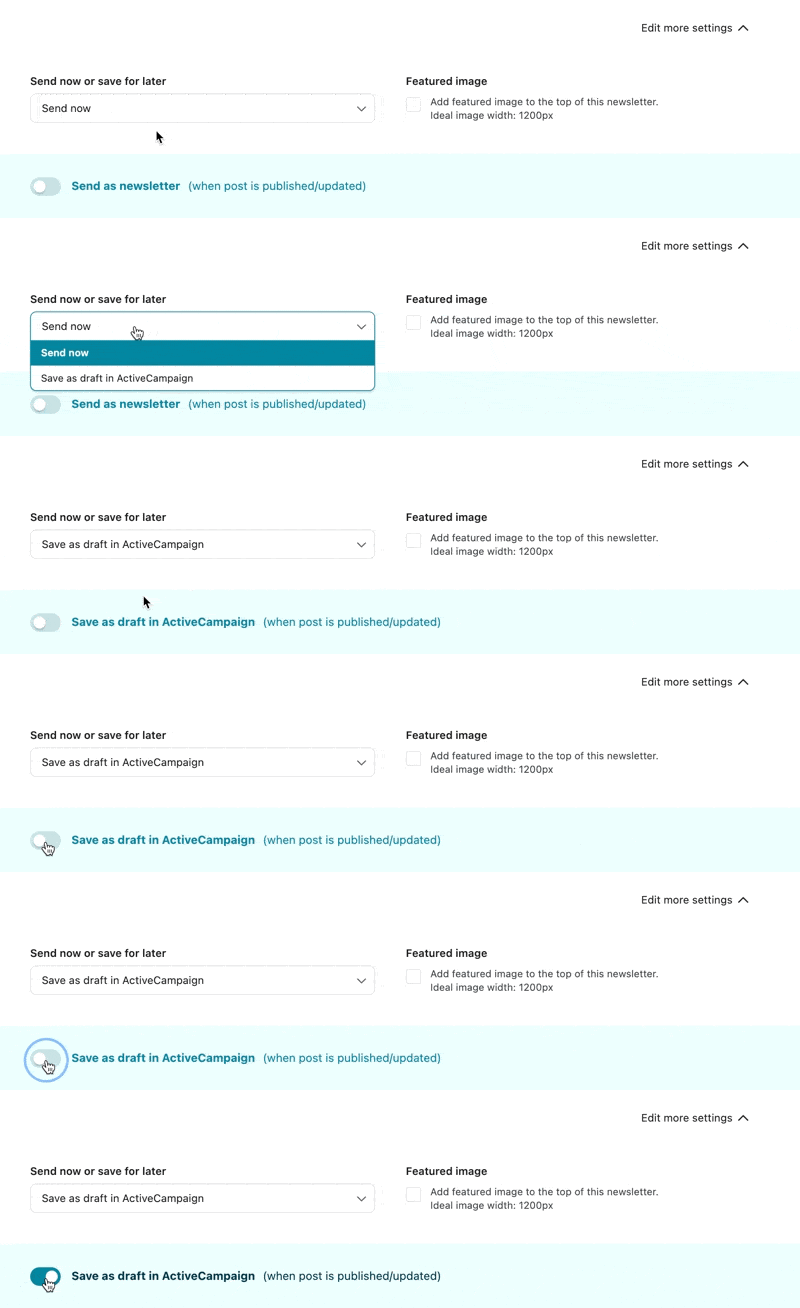
Once you’ve selected Save as draft in [your email service provider] from the dropdown, the text in the toggle will change from Send as newsletter to Save as draft in [your email service provider].
Toggle on Save as draft in [your email service provider] and publish your newsletter like normal.
Step 5: Publish your newsletter
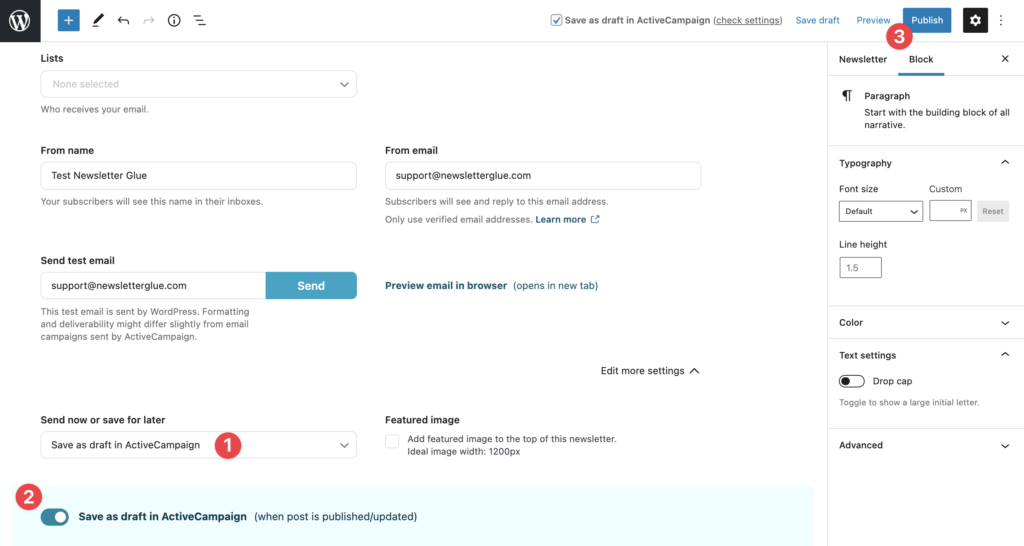
Finally, publish your newsletter like normal. Your email will then be saved as a draft in your email service provider.
You can now head to the drafts section of your email service provider to edit and use your email.
Save as draft with Newsletter Glue ESP
If you send with Newsletter Glue ESP, your drafts stay in WordPress. There’s no separate email service dashboard to save them to, and nothing is sent to your subscribers.
- In the Newsletter Glue box, click Edit more settings.
- Under Send now or save for later, choose Save as draft in Newsletter Glue ESP.

The checkbox at the top of the editor now reads Save as draft in Newsletter Glue ESP.

- Click Save draft to keep your newsletter as a WordPress draft.
- When you’re ready to send, change Send now or save for later back to Send now, then publish.
With this option chosen, nothing is sent to your subscribers, even if you publish the post. Publishing still puts the post live on your site.
Choosing this on a newsletter you’ve already sent moves the post back to draft. That takes its web version offline, but it doesn’t recall the email.