
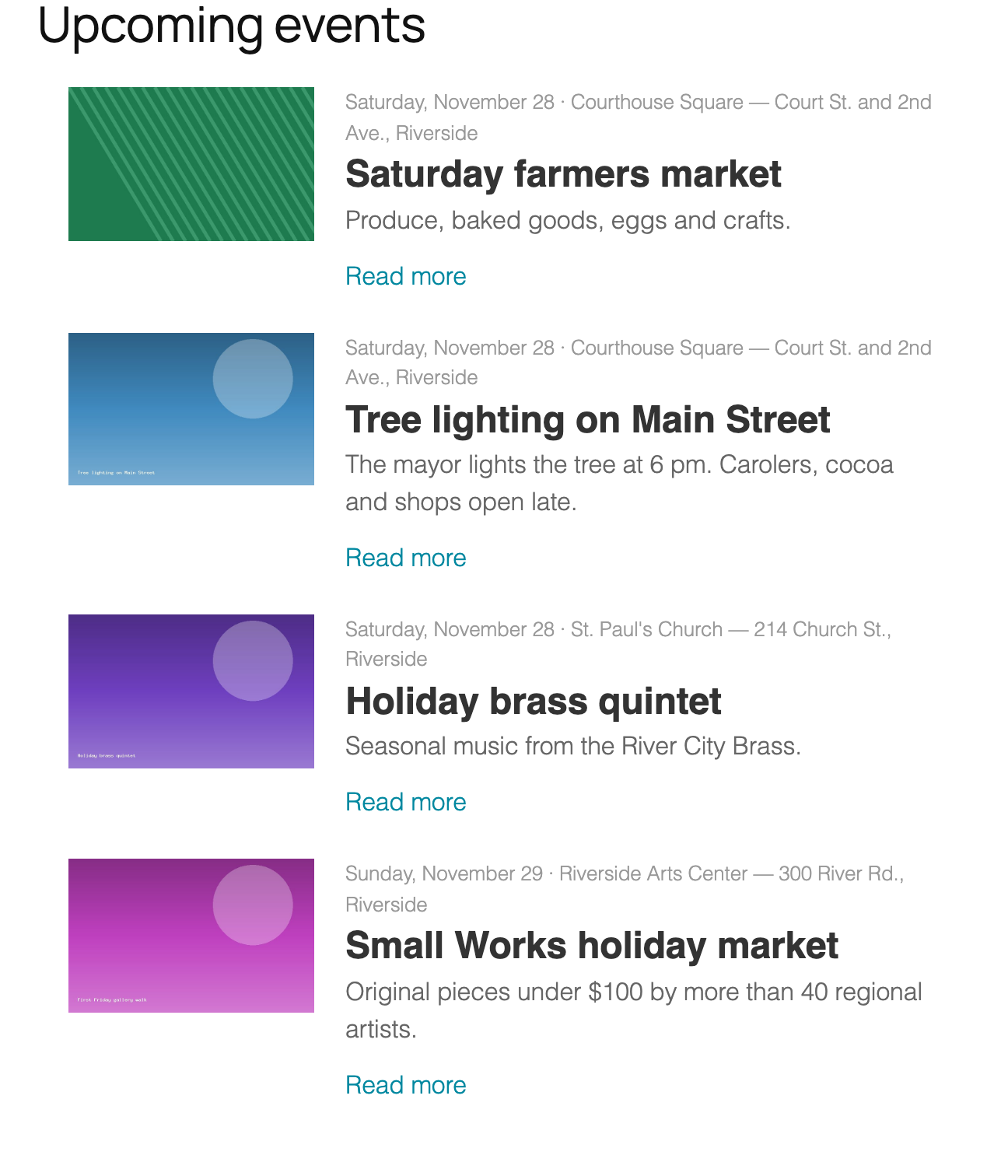
The Latest posts block can show upcoming events from LocalCalendar in your newsletter. Each event shows its image, date, location, title and description, with a link to the event page.
You need Newsletter Glue Pro 4.3 or later and the LocalCalendar plugin active on the same site.
Add events to your newsletter
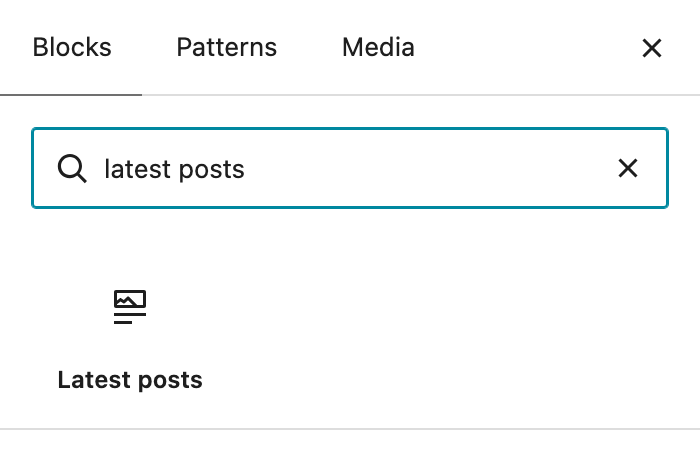
1. Insert the Latest posts block. Open your newsletter or template. Click the + button, search for latest posts and click the block.
2. Open Events options. With the block selected, go to the Block tab in the right sidebar. Scroll down and open Events options.
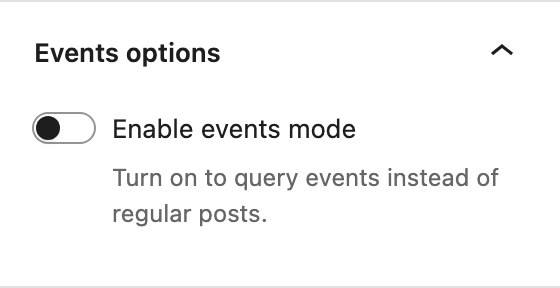
3. Turn on Enable events mode. The block now shows LocalCalendar events instead of posts.
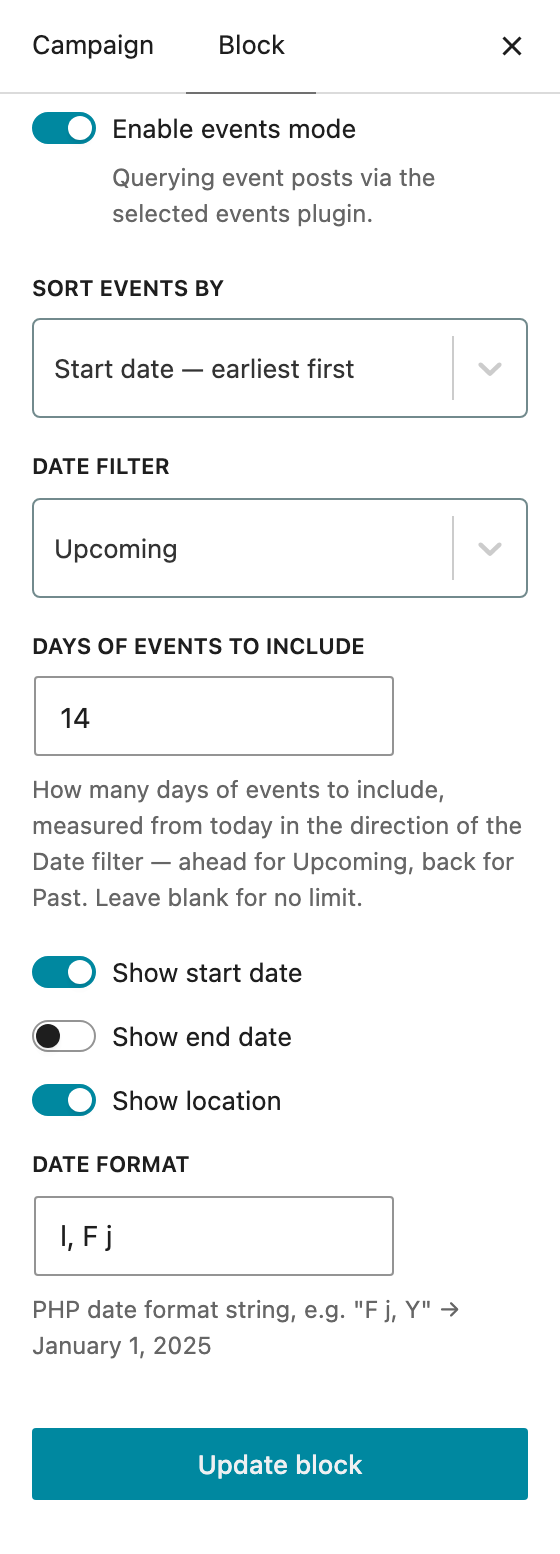
4. Choose which events to show. For a weekly newsletter, a good start is:
- Sort events by: Start date — earliest first
- Date filter: Upcoming
- Days of events to include: 7 or 14
- Show start date and Show location turned on
5. Click Update block. The events appear in the editor.
Events options
- Sort events by: start date, end date or title.
- Date filter: All events, Upcoming, Past, Today, This week or This month.
- Days of events to include: how many days ahead to look (or back, with Past). Leave it blank for no limit.
- Show start date, Show end date, Show location: what appears above each event title. The location includes the venue’s address.
- Date format: a PHP date format.
F j, Yshows “December 5, 2026”.l, F jshows “Saturday, December 5”.
The other block settings work the same as for posts. Set how many events to show with Number of posts under Filter options. Show or hide the image, description and Read more link under Display options. See Latest post block for the rest.
Use it in your template or automation
Add the block to your default template once, and every new newsletter starts with your upcoming events. In automated newsletters, the block gets the events again when each newsletter is sent. With Upcoming and 7 days, a weekly email always lists the coming week. See Creating automated newsletters.
Tips for event images
- The block uses each event’s featured image. Set one in LocalCalendar for every event you want to show with a picture.
- Use images with the same shape, for example all landscape. A tall flyer next to a wide banner makes the rows uneven and leaves empty space around the shorter image.
- To show events without images, hide Featured image under Display options (click the eye icon).
I don’t see Events options
The panel shows only when LocalCalendar (or another supported events plugin) is active. Check that LocalCalendar is active under Plugins, and that Newsletter Glue Pro is 4.3 or later. Then reload the newsletter editor.