
Your newsletters live at yoursite.com/newsletter/. You can change the “newsletter” part to another word. This helps on sites that aren’t in English, or if you want your newsletter’s name in the URL.
Before you change it
Changing the slug changes the URL of every existing newsletter, not just new ones. That includes the “View in Web” links in emails you’ve already sent. Old links will show a 404 page unless you redirect them, for example with a redirection plugin.
Change the slug
- Go to Newsletters > Settings > Additional.
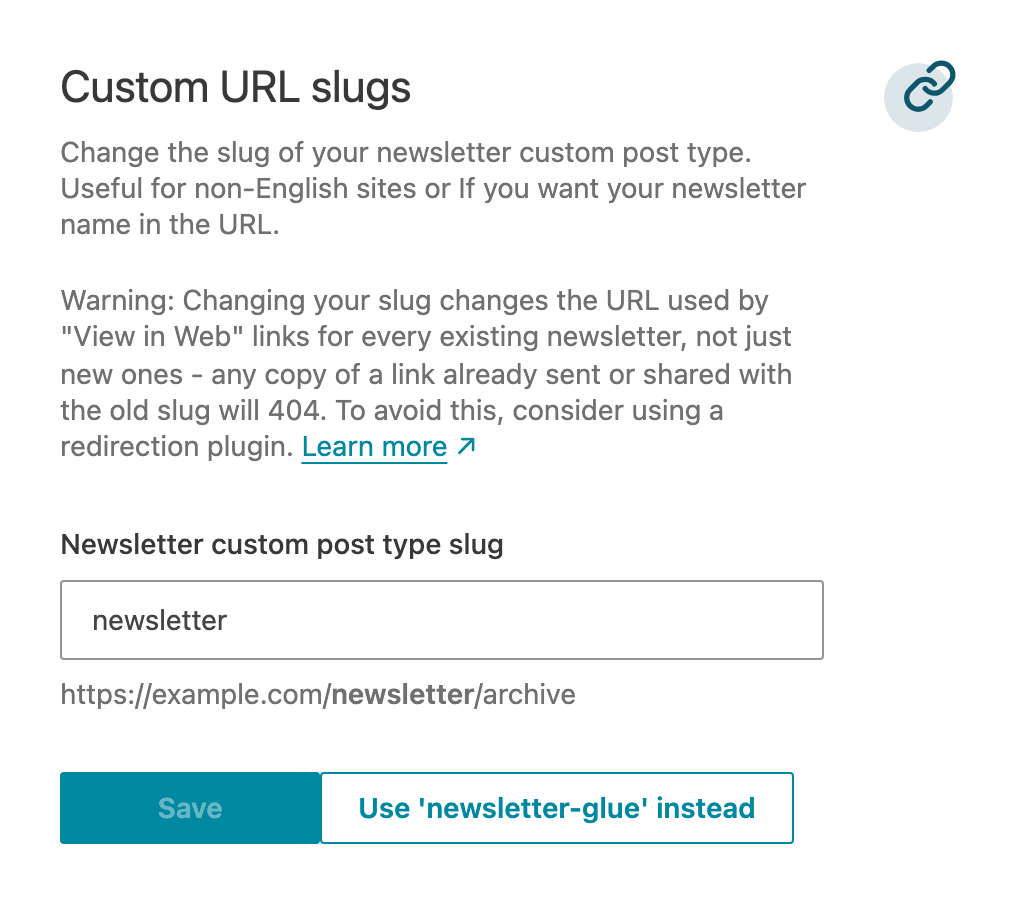
- Under Custom URL slugs, enter the new slug in Newsletter custom post type slug. The preview below the field shows your new archive URL.
- Click Save.
You can also change it under Settings > Permalinks, in the Newsletter Glue section (Newsletter base). Click Save Changes there.
Fix a slug conflict
If another plugin or feature on your site uses the same URL, newsletter links can show a 404 page now and then. Newsletter Glue checks for this and shows a notice on its screens: “Another feature on this site also uses the “newsletter” URL, which can cause newsletter links to 404 intermittently.”
- Click Use 'newsletter-glue' instead to move your newsletters to yoursite.com/newsletter-glue/ in one click. The change is saved right away.
- Or click Open Settings to choose your own slug.

The warning above applies to the one-click fix too: links that use the old slug stop working.
Newsletter Glue checks the content types and categories that other plugins add. It doesn’t check regular pages. If you have a page at yoursite.com/newsletter/, change that page’s URL or the newsletter slug yourself.