
Magic Glue turns your latest posts into a newsletter in one click. It picks your stories, writes the subject line, preview text and intro, and lays everything out in your brand. The result is a draft campaign. Nothing is sent until you send it.
Before you start
- Newsletter Glue 4.3 or later.
- Published posts on your site. Magic Glue builds from your regular blog posts.
- An active license, for the written subject line, preview text, intro and story summaries. Without one, Magic Glue still builds the newsletter: the subject line is your lead story’s title, and the summaries come from your post excerpts.
Build a newsletter
- Go to Newsletters > Emails.
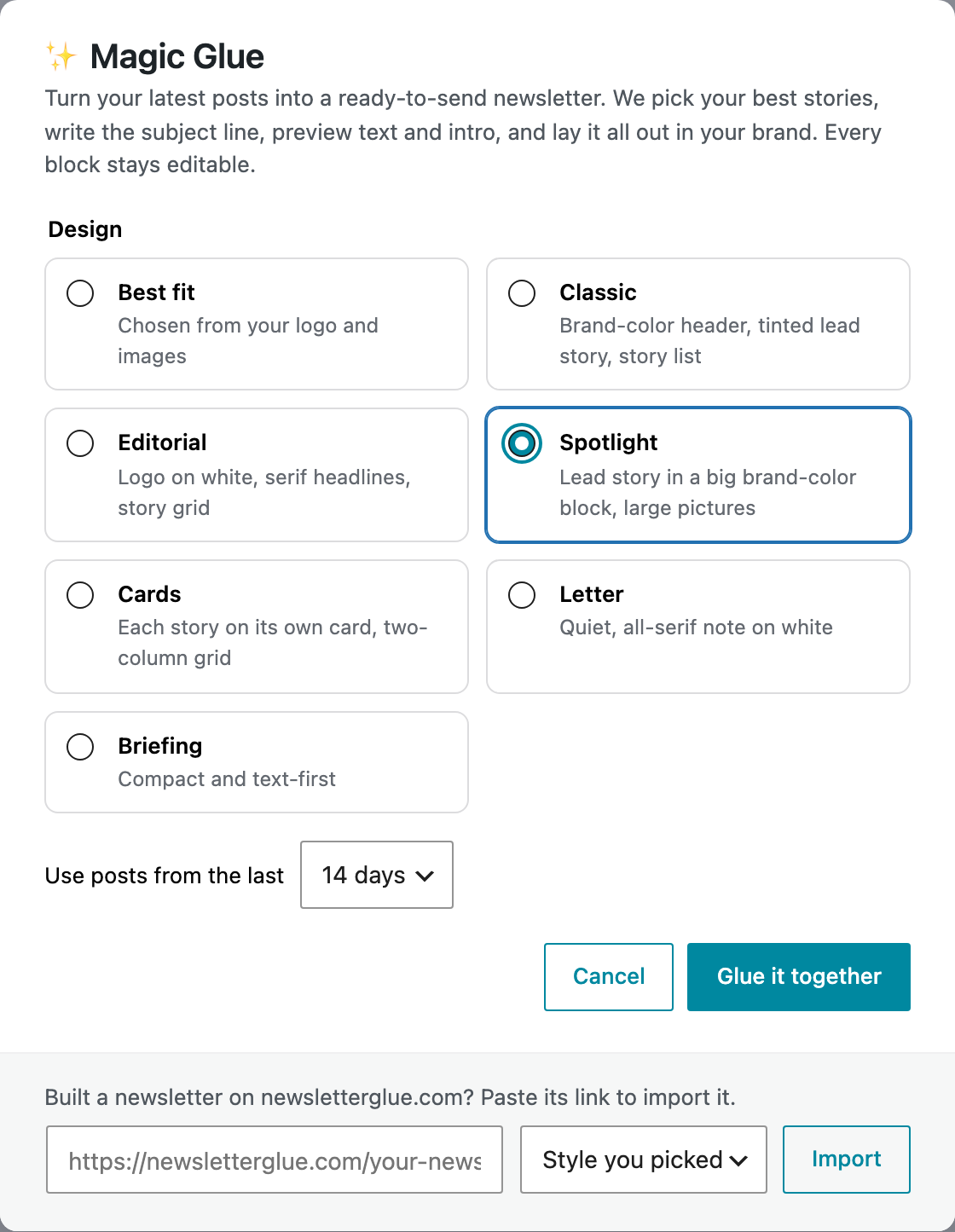
- At the top of the Campaigns list, click ✨ Magic Glue.
- Under Design, choose a style (see below), or leave it on Best fit.
- Under Use posts from the last, choose 7 days, 14 days or 30 days.
- Click Glue it together. This can take up to 30 seconds.
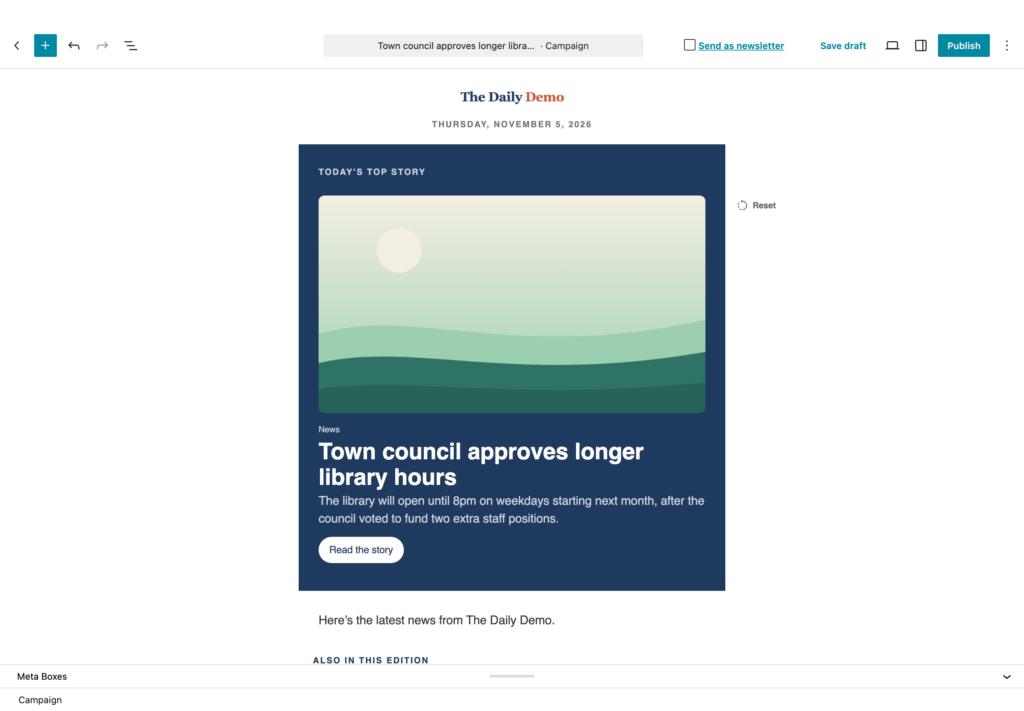
- Your draft opens in the editor. Edit any block, then send it like any other campaign.

The styles
The styles match the newsletter builder on newsletterglue.com.
- Best fit: chosen from your logo and images.
- Classic: brand-color header, tinted lead story, story list.
- Editorial: logo on white, serif headlines, story grid.
- Spotlight: lead story in a big brand-color block, large pictures.
- Cards: each story on its own card, in a two-column grid.
- Letter: a quiet, all-serif note on white.
- Briefing: compact and text-first.
Which posts Magic Glue uses
- Up to 12 published posts from the period you chose. If fewer than 3 posts fall in that period, it uses your 12 newest posts instead.
- Up to 6 stories make it into the newsletter, one of them as the lead.
- Obituaries, public notices and sponsored posts get their own sections (Obituaries, Public notices and From our sponsors). They’re never the lead story, and they keep their original wording.
Import a newsletter you built on newsletterglue.com
Tried Magic Glue on newsletterglue.com before you signed up? You can rebuild that newsletter on your own site, with the same copy, from your own posts. You need an active license to import.
From the Campaigns screen
- Go to Newsletters > Emails. If we find your newsletter, you’ll see Your [site] newsletter is ready to import.
- Choose a Style. The default is Same as on newsletterglue.com.
- Click Import newsletter. Click Not now to skip it.
From a link
- Click ✨ Magic Glue.
- At the bottom of the window, paste the link from your “Your newsletter is ready” email. It looks like https://newsletterglue.com/your-newsletter/?n=…
- Choose a style, then click Import.
Each story is matched to the post on your site. A story that can’t be found stays as a link to the original page. The import opens as a draft you can edit and send.
What Magic Glue sends to newsletterglue.com
To write your copy, Magic Glue sends newsletterglue.com your site’s name, address and tagline, and the title, excerpt, category and date of each recent post. It doesn’t send full post content, images or author names. Obituaries, public notices and sponsored posts are only counted, not sent.